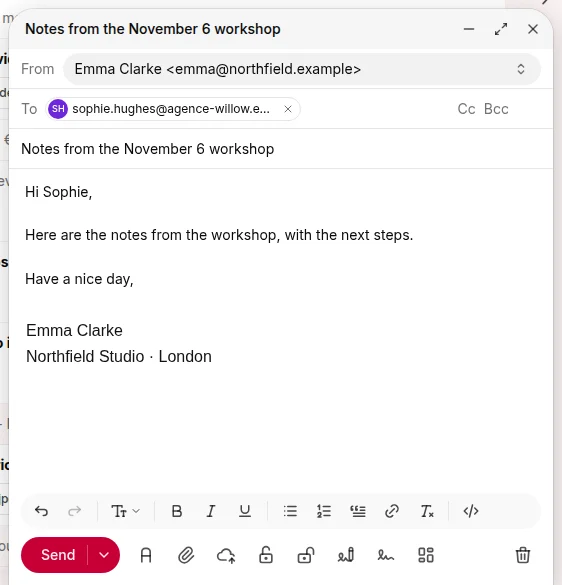
New message (or the c key) opens a compose window at the bottom right. You can open several, minimise them (-), switch them to full screen or close them: the draft is saved automatically as you type, in Drafts.
Sender and recipients
- From: the sending address, when you have several (aliases, secondary addresses, shared mailbox); beyond six addresses, the list has a search field. The default address is chosen in Settings › Accounts › Send mail as.
- To, Cc, Bcc: type a name or an address; Voaaro first suggests the people you often write to, then your contacts, your colleagues and the addresses in your messages. Each recipient becomes a chip; click its cross to remove it.
Formatting
The bottom bar: undo, redo, text size, bold, italic, underline, lists, quote, link, remove formatting, and HTML source (</>) for the code. Pasted text or newsletters keep their formatting: see Pasting HTML and "HTML source".
Advanced formatting opens the full-screen visual editor (blocks, images, buttons, columns) with your templates and your organisation's. The result replaces the plain text; Back to plain text undoes it.
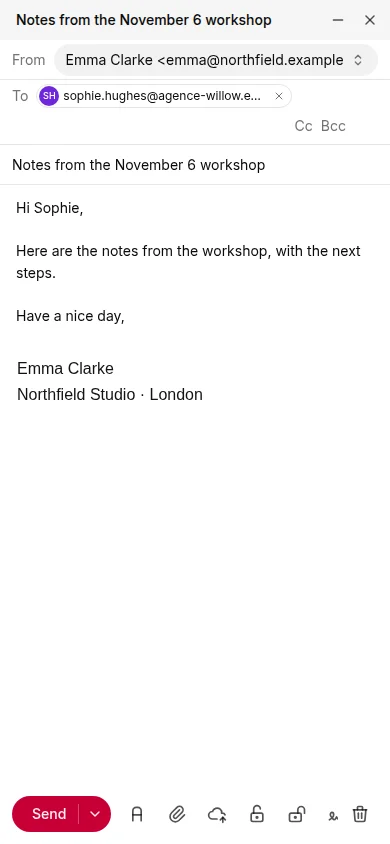
On a phone, Send and the trash icon always stay visible; the tools scroll between the two.
Attachments and large files
Attach files (the paper clip) or drag and drop into the window; progress shows below the text. For a file too large for an email, Send as link uploads it to your instance and inserts a link: validity period, optional password, virus scan before download. The files you sent as links are in Settings › Shared files (turn off a link, storage used). To send several large files without writing a message, with download tracking, use Transfer.
On Voaaro Cloud, your organization's plan sets the maximum size of a message (attachments included) and the volume of attachments sent per month. A file that would go over one of these limits is automatically sent as a download link, and a message tells you so. Trash and Spam are emptied automatically after 30 days.
Signatures and templates
Your default signature is added below the text (new messages, replies and forwards, depending on your settings); "Remove" appears on hover. Insert signature picks another one, or none. Create your signatures in Settings › Signatures (visual editor, import of an HTML file, one signature per secondary address) and your templates in Settings › Templates.
Send, schedule, undo
- Send sends right away. During the send cancellation period (5 seconds by default, up to 30, set in Settings › General), the message shown at the bottom right offers Cancel: the draft comes back.
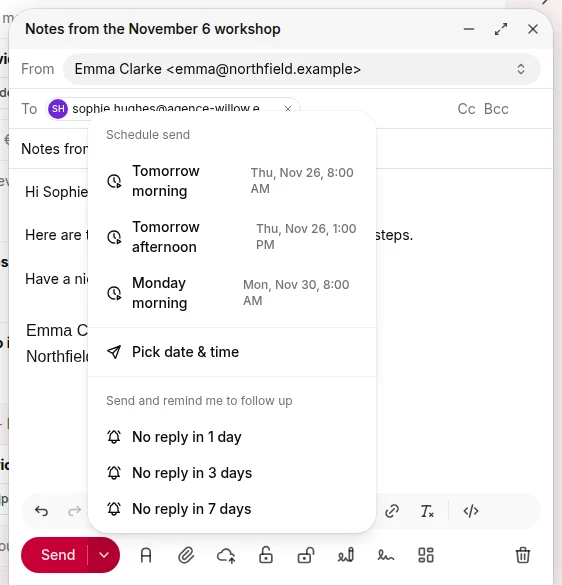
- The arrow next to Send opens Schedule send: tomorrow morning, tomorrow afternoon, Monday morning or Pick date & time. The message waits in More › Scheduled, where you can cancel sending.
- The same menu offers Send and remind me to follow up: with no reply within 1, 3 or 7 days, the conversation comes back to the top of the inbox (see Nudges, tasks and notes).
- Send and archive, in a reply, sends and then archives the conversation (button to turn on in Settings › General).
Confidential and encrypted
The padlock icons in the bar open Confidential mode (access link, expiry, passcode) and PGP encryption (encrypt, sign). See Privacy and PGP encryption.
The AI assistant
If the administrator has turned it on, the Writing help button (sparkles) drafts, rephrases, shortens, expands, translates or corrects your text. Nothing is replaced without your click. It does not appear in confidential mode or in a shared mailbox.