Aliases
An alias is an extra address that arrives in the same mailbox (billing@ → Marie's mailbox). The administrator adds them from the Users page: an account's ⋯ menu (or right-click) › Addresses and aliases…, on their own domains. The user can then write as the alias (Settings › Accounts and import).
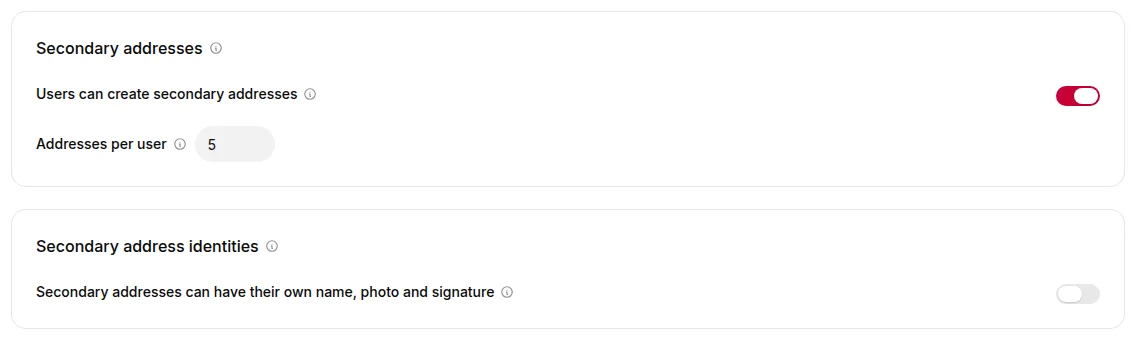
Each user can also create secondary addresses themselves (Settings › Accounts), within the limit set by the administrator. Messages received on each one carry a marker.
Secondary address identities are off by default. The administrator can enable them for the whole instance or for the domain chosen at the top of the page (Sign-up and profiles › "Secondary address identities" card, switch "Secondary addresses can have their own name, photo and signature"), on an organization's page, or for a single person: Users › Edit role and access › "Enable or disable for this person…", which leads to the override "Use one's secondary addresses as full identities".
Once identities are enabled, each secondary address can have its own display name, photo, signature and reply-to address (Settings › Accounts › … › Identity). A message written from the address goes out under that name, with that signature and that Reply-To header. The instance's other accounts and Libravatar get the address's photo instead of the account's. If the administrator disables identities again, they are no longer applied, but nothing is deleted. While they are off, Settings › Accounts › Secondary addresses shows the user a greyed-out line: "Ask your administrator to enable secondary address identities". The administration search (Ctrl+K) finds the setting when you type "photo", "signature" or "identity".
Filters
In the webmail, Settings › Filters and Blocked Addresses: like Gmail, criteria (from, to, subject, has the words, doesn't have, size, attachment) and actions (mark as read, star, important, category, label, archive, delete, forward, never send to spam).
- Filters run on the server, on receipt, so they also work when you read your email on your phone over IMAP, with the app closed.
- "Also apply to matching conversations" applies them to mail already received.
- Import and export in Gmail's XML format, so you can bring over your Gmail filters as they are.
- 100 filters and 1,000 blocked addresses per account.
- Right-click a conversation in the list (long-press on a phone) to "Filter messages like these" or "Block" the sender, as in a message's menu; right-click a filter or a blocked address to edit, delete or unblock it. Blocked addresses are paged and searchable.
Verified forwarding
A forwarding address receives nothing until its holder has entered the 9-digit code sent to that address. This way, no one can turn your server into a relay to a mailbox that does not belong to you. Only one redirection per message; 10 forwarding addresses per account.
Vacation responder
The vacation responder (out of office) is set in Settings and works with filters.