Your mailbox also works in Mail on iPhone, iPad and Mac, Gmail or K-9 / Thunderbird on Android, Thunderbird and Outlook on a computer. Each device has its own app password: your main password is never used in a mail app, and removing a device doesn't affect the others.
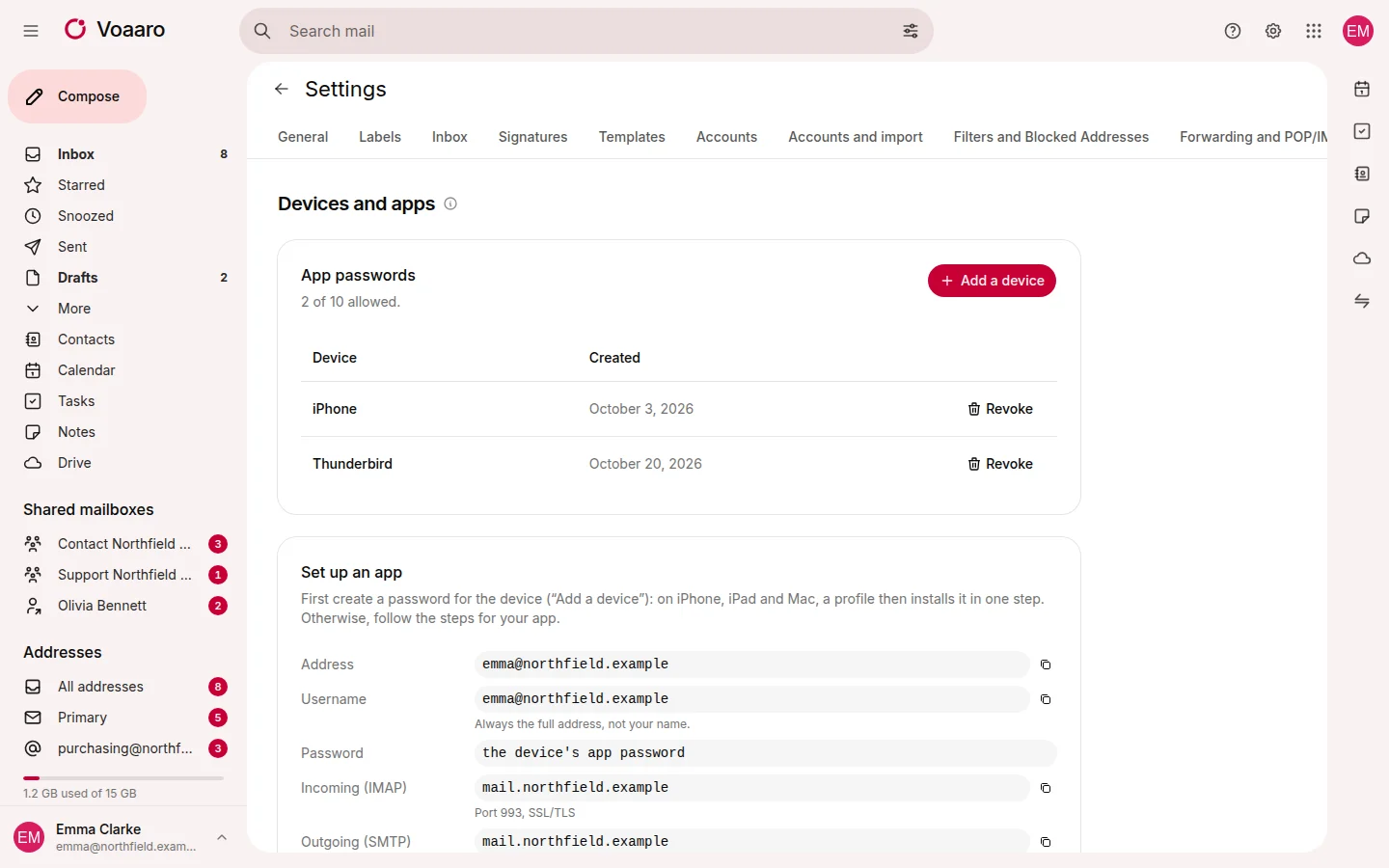
Add a device
- Settings › Devices › Add a device: give it a name ("iPhone", "Office Thunderbird"). The password is shown only once: copy it into the app.
- On iPhone, iPad and Mac, Voaaro offers a configuration profile that sets up mail, contacts and calendar in one go.
- Otherwise, follow the steps for your app (iPhone / iPad, Mac, Android, Thunderbird / Outlook tabs) with these settings:
| Setting | Value |
|---|---|
| Username | your full address (you@example.com), never your name |
| Password | the device's app password |
| Incoming (IMAP) | mail.example.com, port 993, SSL/TLS |
| Outgoing (SMTP) | mail.example.com, port 465, SSL/TLS, same username and password |
The guide shows your instance's real server names, with a button to copy each value. On Voaaro Cloud and for an @voaaro.com address, the server is mail.voaaro.com.
The number of app passwords is limited ("2 of 10 possible"). Revoke disconnects the device right away. On a public service, app access may only open once the account is a few days old: see your plan.
Contacts and calendar
Sync contacts and calendar, further down the same tab: with the same app password, add a CardDAV (contacts) and CalDAV (calendar) account:
- iPhone, iPad, Mac: already included in the configuration profile; otherwise Settings › Apps › Contacts (or Calendar) › Accounts › Add Account › Other.
- Android: the free DAVx⁵ app, "Login with URL and user name".
- Thunderbird: new "on the network" address book and calendar, with the addresses shown.
A change made on the phone shows up in Voaaro, and vice versa. Tasks follow along with the calendar.
POP
Settings › Forwarding and POP/IMAP repeats the same settings. POP downloads messages without keeping the read / unread state or folders: prefer IMAP.