Domains and deliverability › Domains and DNS lists the instance's domains and checks, for each one, that the DNS records published at your DNS host are the ones the server expects. The records themselves (MX, SPF, DKIM, DMARC…) and their purpose are described in DNS records.
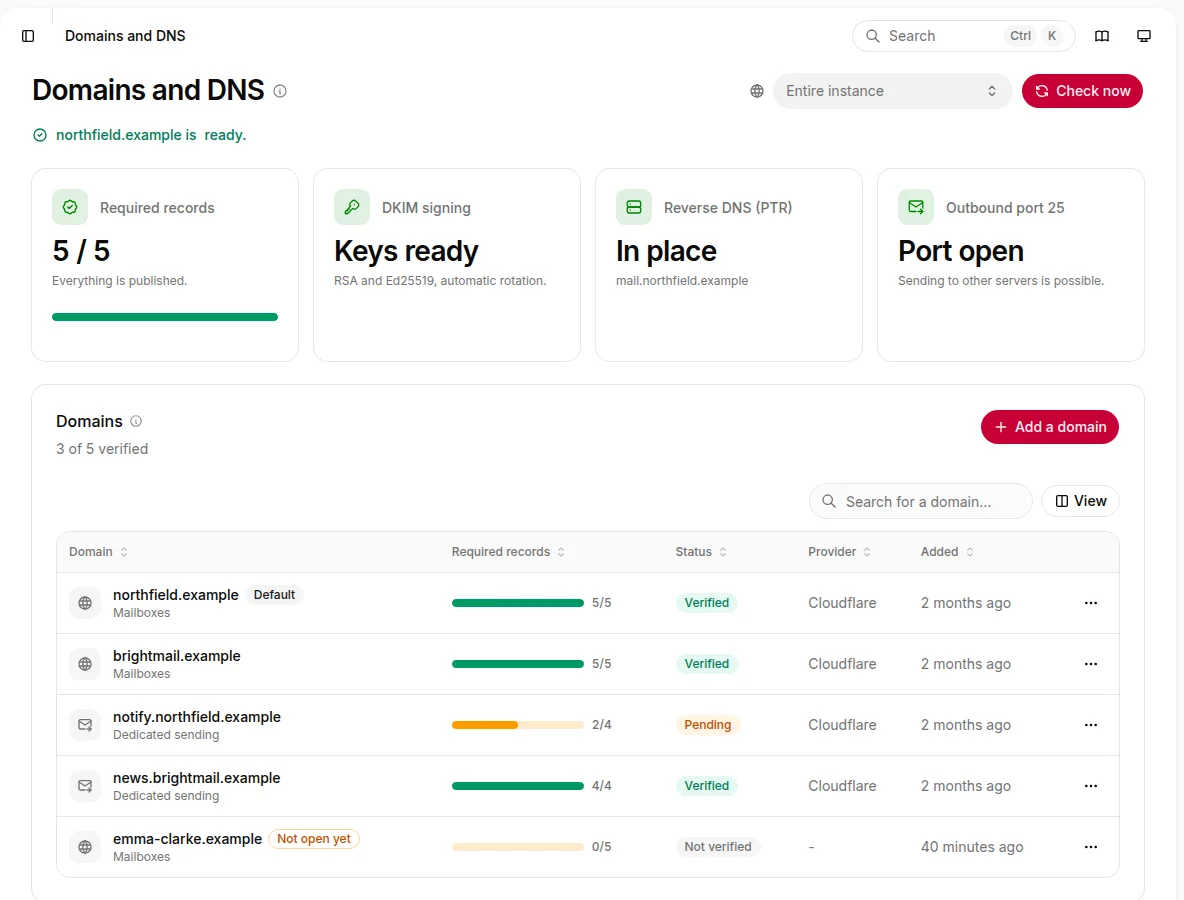
At the top of the page
- Required records: how many are in place across all domains;
- DKIM signing: RSA and Ed25519 keys, rotated automatically;
- Reverse DNS (PTR) of the server's IP address; it is set at the server's hosting provider;
- Outbound port 25: open, or blocked by the hosting provider (ask them to open it).
Check now runs every check again. The picker next to it limits the page to one organization.
Add a domain, step by step
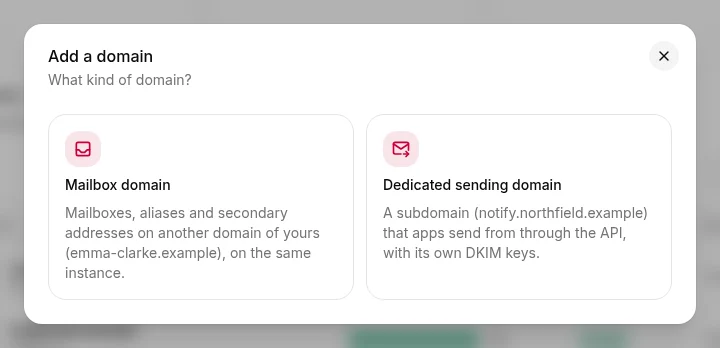
- Add a domain, then What kind of domain?:
- Mailbox domain: mailboxes, aliases and secondary addresses on a domain you own; the server receives and sends its mail;
- Dedicated sending domain: a subdomain (
notify.example.com) your applications send from through the API, with its own DKIM keys, so that a sending incident does not hurt the mailboxes' reputation (why).
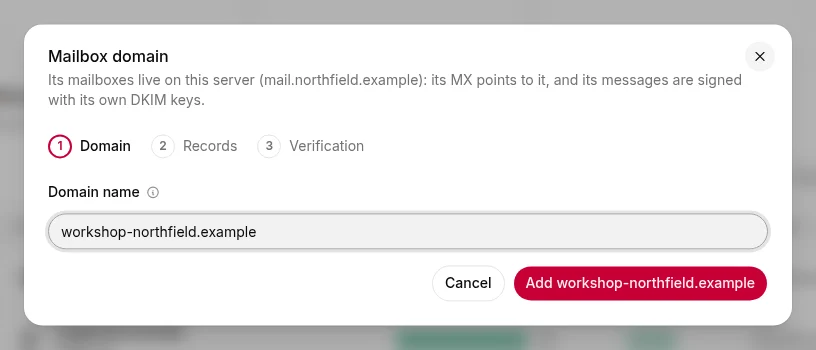
- Type the Domain name, then Add. The wizard has three steps, Domain, Records, Verification: the second lists each record to create at your DNS host (type, name, value, copy button), marked Required or Recommended. The detected DNS provider (Cloudflare…) adds its own advice, for example "DNS only" for the A record.
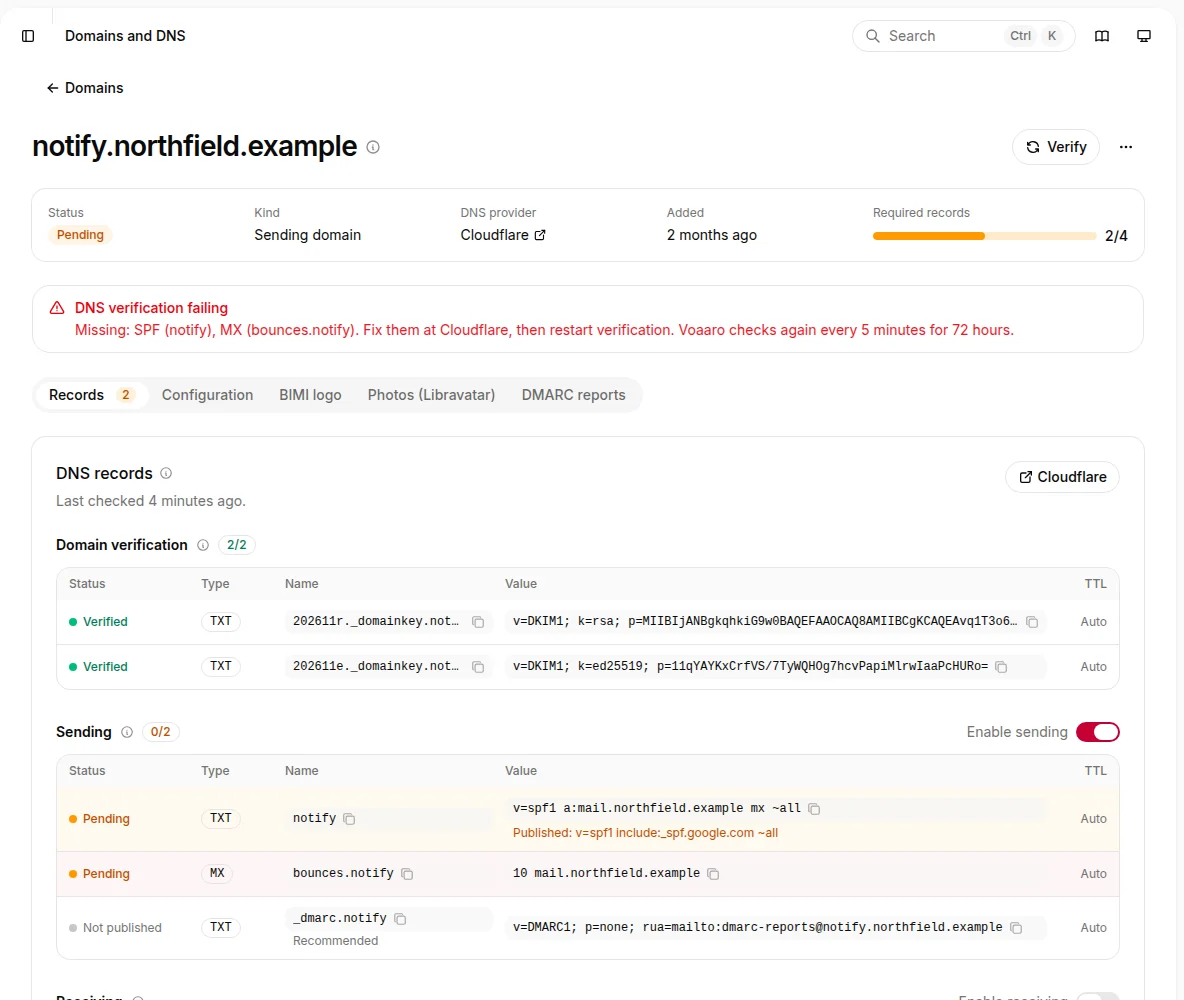
- Verify: each line turns In place, or shows To create or Different value with the expected value. You can close (Later) and come back: verification keeps running on its own.
- Once the required records are verified, the domain is open to addresses: it is offered wherever an address is chosen (invitations, sign-up, shared mailboxes, aliases). If the domain's mail still arrives elsewhere, use Open to addresses now to prepare accounts before switching the MX.
Domain page
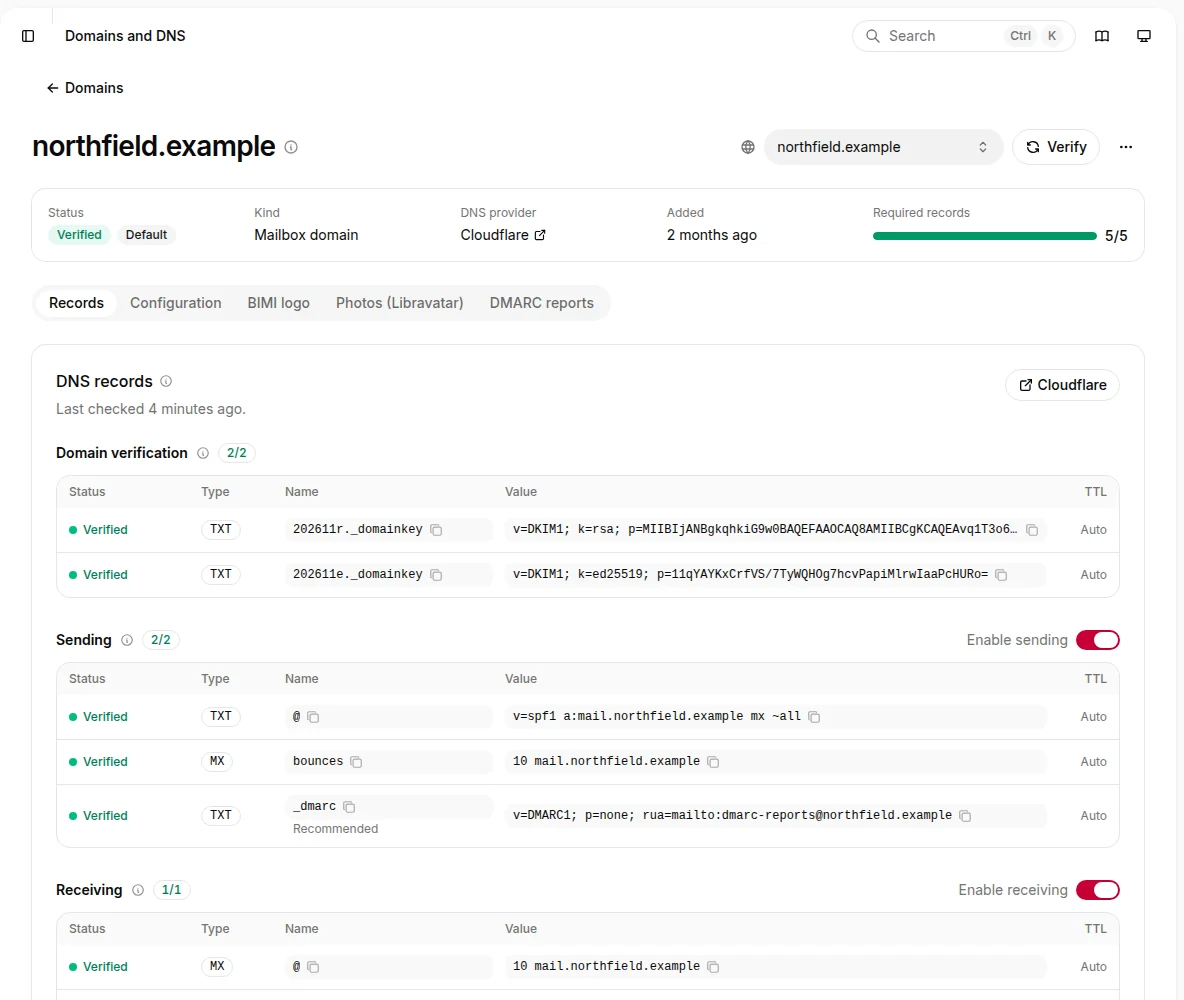
Click a domain (or ⋯ › Open domain page). At the top: ← Domains, Verify and the ⋯ menu; then the status (Verified, Default…), the kind (mailbox or sending domain), the DNS provider, the date added and the progress of required records. The tabs:
| Tab | Content |
|---|---|
| Records | the expected DNS records, by part (Domain verification, Sending with the Enable sending switch, Receiving with Enable receiving, transport security, client configuration): status, type, name and value to copy |
| Configuration | default domain, transport security (MTA-STS, TLS-RPT), automatic client configuration |
| BIMI logo | the steps to show your logo next to your messages in mail apps that support it |
| Photos (Libravatar) | the photo of the domain's accounts served to other mail systems |
| DMARC reports | the aggregate reports received for this domain |
At the bottom, Domain events (checks, records that disappeared) and Delete domain (refused while it is the default domain; its DKIM keys and technical account are deleted, API keys no longer cover it, its suppression list, templates, newsletter data and send log are erased, and you then remove its records at your DNS host).
DMARC reports
Domains and deliverability › DMARC reports, and the card of the same name under the domain list: for each domain, the published policy (Monitoring (p=none), quarantine, reject), messages over the last 30 days, the compliance rate and a piece of advice ("100 % compliant for 21 days: you can move to quarantine"). Fetch now reads the report mailbox right away; Aggregate retention (days) sets how long they are kept. TLS-RPT reports are shown there too.
Certificate for per-domain names
The Certificate for per-domain names card checks that the names published for each domain (mail., autoconfig., autodiscover., mta-sts.) answer over HTTPS with a valid certificate, and gives the certbot command and the server_name line to reuse in the host's proxy (Proxy and certificates).
Server side and mail apps
At the bottom of the page: Server side (the A record of the server name and its reverse DNS) and the settings to enter in Apple Mail, Thunderbird or Outlook (login, IMAP, SMTP), each with a copy button.