The gear at the top right opens quick settings (density, theme, inbox type, reading pane) and See all settings. Account menu › Manage your account leads to the same place. Each tab has its own address (#/settings/general, #/settings/securite…), handy for a help link.
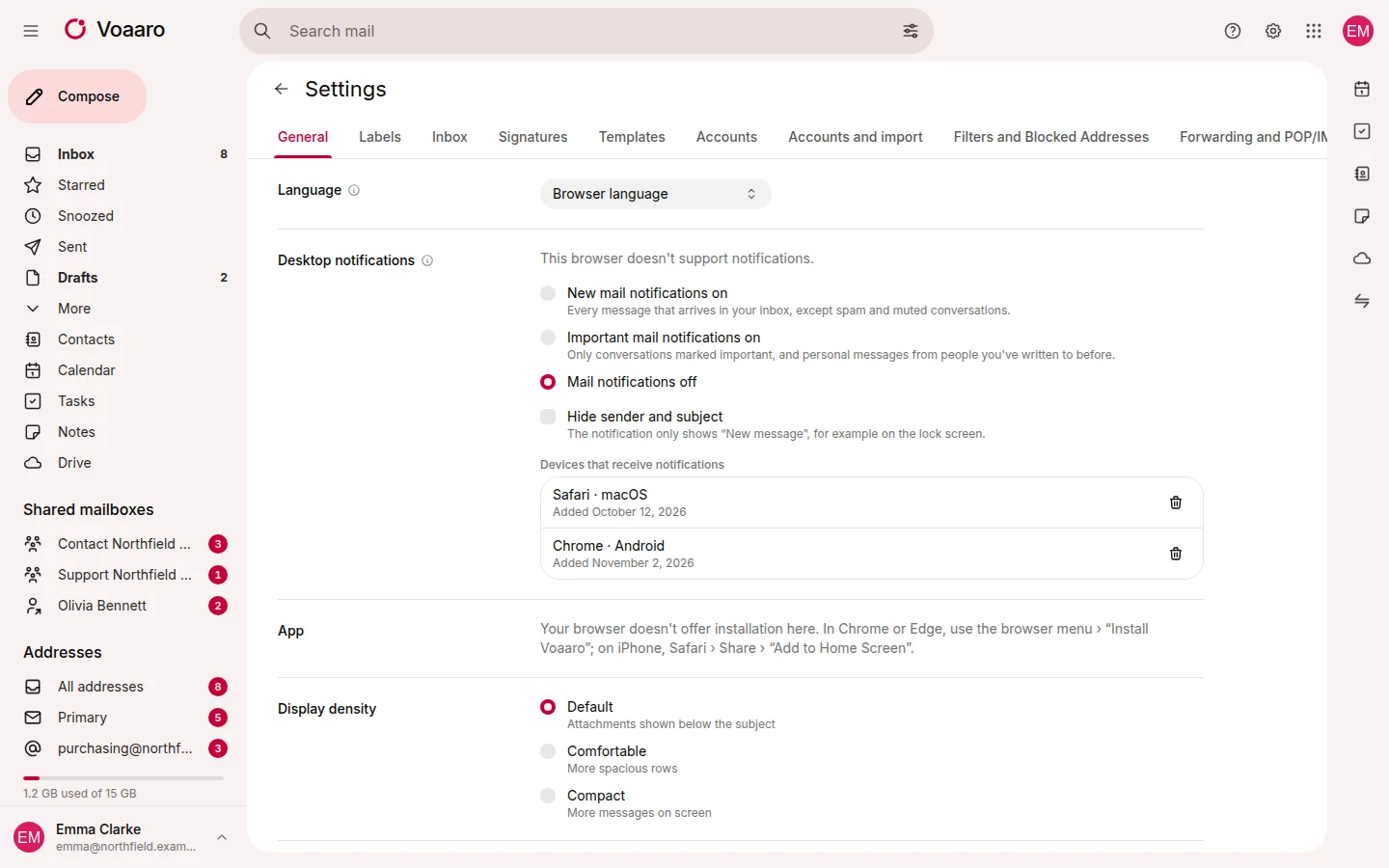
In the General and Inbox tabs, your changes wait in a bar at the bottom: Save Changes or Cancel. Leaving the tab with unsaved changes asks you first. The other tabs save each action right away. An "i" next to a heading explains the setting.
The tabs
| Tab | What you set there |
|---|---|
| General | interface language (seven languages), desktop notifications and the devices that receive them, installing the app, density, conversation view, send cancellation period, external images, mark as read on open, nudges, default reply mode, "Send and archive", previews, button labels, keyboard shortcuts, page size, signature reminder, vacation responder |
| Labels | create, rename, colour, nest, delete |
| Inbox | inbox type, categories shown, reading pane, importance markers (details) |
| Signatures | signatures designed in the visual editor or imported as HTML, default signature, insertion in new messages, replies and forwards |
| Templates | your message templates and footers, and your organisation's ("Customize" makes a copy) |
| Accounts | profile photo, display name, secondary addresses, "Send mail as", storage, delegation and shared mailboxes, your data |
| Accounts and import | import another mailbox (Gmail, Outlook, any IMAP server), a file (mbox, Takeout, .eml) or contacts (vCard, CSV) |
| Filters and Blocked Addresses | filters and blocking |
| Forwarding and POP/IMAP | forwarding and app settings |
| Security | 2-Step Verification, passkeys, sessions, PGP, encryption at rest |
| Devices | app passwords, IMAP, SMTP, CalDAV, CardDAV |
| Offline | the copy on this device |
| Themes | colour, illustration or background photo, accent colour, light, dark or system mode |
| Shared files | files sent as links, their expiry and the space used |
| AI assistant | your consent, the provider used, your own key if the administrator allows it |
| Plan | on a public service only: your plan and its usage |
| Developers | opens the Developers space |
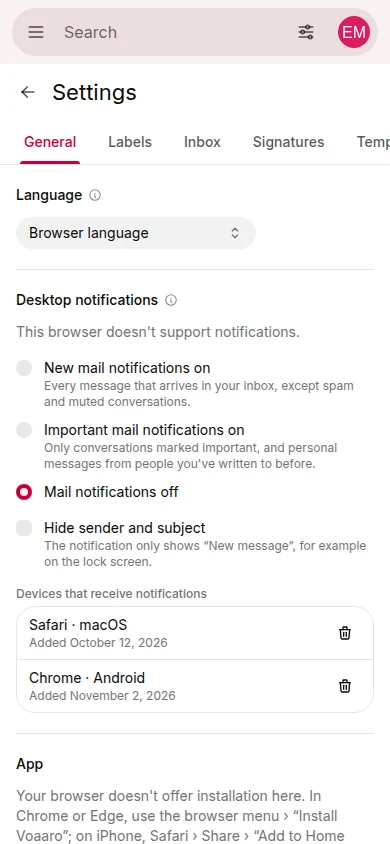
On a phone, the tabs scroll horizontally at the top of the screen.
Notifications and app
Desktop notifications: turn them on for this device (the browser asks for permission), choose all new messages or only important ones, and hide the sender and subject if you like (for example on the lock screen). You can remove a device from the list of subscribed devices. A device stops receiving notifications when its session ends (session closed remotely, password reset, session expired). They resume on their own at the next sign-in on that device, without a new browser prompt. After "Sign out", turn them back on yourself.
App: Voaaro installs as an app (Chrome or Edge: browser menu › "Install Voaaro"; iPhone: Safari › Share › "Add to Home Screen"). It opens in its own window, receives notifications and works offline.
Migrate from Gmail or Outlook
Settings › Accounts and import › Migration assistant brings over your old mailbox in six steps:
- Provider: Gmail, Outlook.com, Microsoft 365, Yahoo, iCloud or another IMAP server (Free, Orange, SFR, La Poste, GMX under "Other providers"). The server and port are filled in for you.
- App password: the provider's instructions, with a link to its page. Gmail: first turn on 2-Step Verification, then create an app password (16 letters, spaces do not matter). Microsoft: app password after two-step verification; for a Microsoft 365 account, your administrator must keep IMAP access enabled.
- Connection: the assistant tests the access and lists your folders with their message counts.
- Folders: automatic mapping places Inbox, Sent, Drafts, Trash, Spam and Archive; other folders and Gmail labels become labels. Gmail's "All Mail" only brings the archived messages, without duplicates. Each folder can get another destination or be unchecked; fetching new messages for 30 days is optional.
- Contacts and calendar: contacts from iCloud, Yahoo or another CardDAV server are read with the same password; Google or Outlook contacts go through an exported vCard or CSV file. The calendar goes through an
.icsfile (no invitation is sent again to attendees). - Summary, then Start the migration.
Progress is shown live, folder by folder, then a summary: messages imported, already there, skipped, duration, contacts and events added. You can close the window: the migration keeps running on the server and resumes by itself after an interruption, without duplicates. Nothing is changed in the old mailbox. If the password is refused along the way, Restart on the import asks for a new password and resumes where it stopped.
If Microsoft refuses password sign-in, export the mailbox as .mbox (Thunderbird and its ImportExportTools NG add-on) and import the file under Import a file.
For Microsoft 365 and Outlook.com, if your administrator has enabled it, step 2 offers Sign in with Microsoft: a Microsoft window opens, you pick your account and allow Voaaro to read your mailbox and your contacts. No password is given to Voaaro, and the assistant goes straight to the folder choice. In step 5, Import the contacts of your Microsoft account brings your contacts over; the calendar still goes through an .ics file. The access is encrypted on the server, renewed during the migration and erased as soon as it is over. If your organization blocks the authorization, ask your Microsoft 365 administrator to consent to the application, or use the app password or the .mbox export. For a stopped import, Restart asks you to sign in again to the same Microsoft account.